
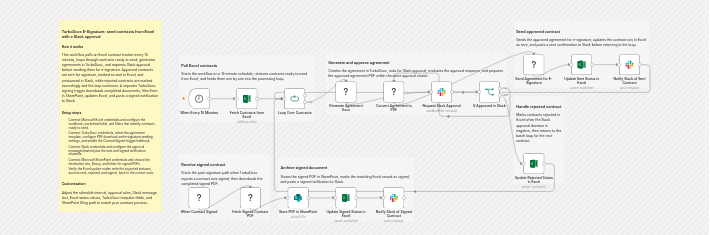
The full workflow on the n8n canvas. Open the interactive version on n8n.
Why this workflow is different: a scan of the n8n template library turns up roughly 17 e-signature templates, and every one calls its signing vendor through a generic HTTP Request node. None generates a different contract body per recipient, which is exactly what this template does.
To send contracts for e-signature from Excel in n8n, keep a Microsoft Excel table in SharePoint as your queue. A schedule trigger picks up each row marked "Ready to send", TurboDocx generates the agreement, a manager approves it in Slack, and only then is it sent for signature. The executed PDF files itself back into SharePoint.
This n8n e-signature workflow turns a plain spreadsheet into a controlled contract pipeline. There is no Microsoft Teams to install and no manual copy and paste between a document generator and a signing tool. The whole thing runs on 16 functional nodes, 2 independent triggers, and 3 sticky notes, wiring together Microsoft Excel, Slack, Microsoft SharePoint, and TurboDocx.
The result is a send lane and a file lane that never lose track of a contract. A manager stays in the loop with a single Slack approval, and every signed agreement lands back in SharePoint with its status updated. You can grab the full template and drop it into your own n8n instance in a few minutes.
How it works, step by step
Here is the full path a contract takes, from a row in Excel to a signed PDF filed in SharePoint.
- 1
Mark a contract row Ready to send
Each contract lives as a row in a Microsoft Excel table stored in SharePoint. When a row is marked "Ready to send", it enters the queue for the workflow to process.
- 2
A schedule trigger picks up ready rows
A schedule trigger runs every 15 minutes and reads the Excel table for any row marked "Ready to send", so nobody has to kick off the run by hand.
- 3
TurboDocx generates the agreement
For each ready row, TurboDocx merges the row values into your .docx template and produces a per-recipient agreement with the correct body, terms, and signature anchors.
- 4
A manager approves it in Slack
The generated contract is sent to Slack using the Send and Wait for Response node. A manager approves or rejects it right in the channel. No Microsoft Teams required.
- 5
The approved contract is sent for e-signature
Only after a manager approves does TurboDocx send the agreement for e-signature to the recipient. Rejected contracts never leave the building.
- 6
The signer completes the document
When the recipient signs, TurboDocx fires a webhook. That webhook self-registers with TurboDocx when the workflow is activated, so the second lane wakes up on its own.
- 7
n8n files the signed PDF in SharePoint
The workflow downloads the executed PDF and files it into your SharePoint Signed Contracts document library, keeping every signed agreement in one place.
- 8
The row is marked Signed and Slack is notified
The Excel row is updated to "Signed" and a message is posted to the Slack channel, closing the loop so the whole team can see the deal is done.
Two lanes, two triggers
The workflow splits into two independent lanes. The send lane runs on a schedule and pushes contracts out. The file lane wakes up on a webhook and brings signed documents back in. They never block each other.
| Send lane | File lane | |
|---|---|---|
| Trigger | Schedule trigger, every 15 minutes | TurboDocx signature webhook |
| First action | Read each "Ready to send" row from the Excel queue | Download the signed PDF from TurboDocx |
| Middle action | Generate the agreement, then get a Slack approval | File the PDF into the SharePoint Signed Contracts library |
| Final action | Send the approved contract for e-signature | Mark the Excel row "Signed" and notify Slack |
Why one credential does the whole job
Every contract in this queue has a different body. Different client, different terms, different numbers. That is the part a signature-only tool cannot do on its own, and it is where the single credential earns its place.
TurboDocx generates the per-recipient agreement, sends it for signature, and returns the executed copy through one credential. A signature-only vendor cannot vary the document body per row, so a comparable flow needs a separate document generator bolted on first, plus a second credential, a second set of failure points, and a hand off between the two. Folding generation and signing into a single e-signature step keeps the workflow short and the setup honest.
What you need to set it up
Add your TurboDocx API key
Connect a TurboDocx credential in n8n. The free tier covers 5 signatures per month, enough to test the whole flow end to end.
Prepare a .docx template
Build a template with merge variables for the row fields and the {client_sig} and {client_date} anchors where the recipient signs and dates.
Point the workflow at your Excel queue
Connect the Microsoft Excel table in SharePoint that holds one contract per row, with a status column the workflow can read and update.
Choose a Slack channel and a SharePoint folder
Pick the Slack channel that receives approval requests and notifications, and the SharePoint Signed Contracts folder that stores executed PDFs.
Activate the workflow
Activating the workflow registers the TurboDocx signature webhook automatically, so the file lane starts listening the moment you turn it on.
Want the deeper background on patterns like this? Read the n8n e-signature automation guide for more ways to wire signing into your automations, or explore the TurboDocx API and SDK if you would rather build the flow in code.
Frequently asked questions
Can I add a Slack approval before sending a contract for signature in n8n?
Yes. This n8n e-signature workflow uses the Slack Send and Wait for Response node so a manager approves each contract in Slack before it ever goes out for signature. TurboDocx generates the agreement, the approval request lands in your channel, and only an approved contract is sent for e-signature. Nothing leaves the building without a human sign off.
Does this n8n e-signature workflow need Microsoft Teams?
No. The approval step runs entirely in Slack, so you do not need Microsoft Teams or any other chat tool. If your team already lives in Slack, the manager approves the contract right where they work, and the workflow continues automatically once they respond.
Is there a free TurboDocx tier for sending contracts for signature?
Yes. The TurboDocx free tier covers 5 signatures per month, which is enough to build and test the full n8n e-signature workflow end to end before you commit. You need a TurboDocx API key and a .docx template with merge variables plus the {client_sig} and {client_date} anchors, and you are ready to send.
Why does this workflow use one credential instead of a separate document generator?
TurboDocx generates the per-recipient agreement, sends it for signature, and returns the executed copy through a single credential. A signature-only vendor cannot vary the document body row by row, so a comparable flow needs a separate document generator bolted on first. One credential keeps the setup simpler and the whole pipeline in one place.
How do the signed contracts get filed automatically?
When a signer completes the document, TurboDocx fires a webhook that the workflow registered when you activated it. n8n downloads the signed PDF, files it into your SharePoint Signed Contracts document library, marks the Excel row as Signed, and posts a notification to the Slack channel. The whole file and record step runs without anyone touching it.
Put the workflow to work today
Grab the n8n template, connect your TurboDocx key, and send your first contract from Excel with a Slack approval in front of it.