In-Person E-Signature on One Kiosk or Tablet
Everyone at the counter signs the same document before they leave. Your kiosk app shows each signer their TurboSign signing page in turn, and nobody has to go find an emailed link.
How do you collect e-signatures in person on one device?
Put one kiosk or tablet at the counter and let every signer sign the same document, in order, while they are in the room. With TurboSign embedded signing, your app creates the document once, shows the first signer their signing page inside your own kiosk screen, and loads the next signer the moment the previous one finishes. TurboSign enforces the order on its servers and records how each signer was verified.
Key takeaways
- One tablet, one document, every signer. Each person signs in turn on the same screen, and no signing link lands in anyone’s inbox.
- Signing order is enforced by TurboSign itself, not just by your screen, so nobody can sign out of turn.
- You choose how each signer proves who they are: an email passcode, a text message passcode, or an identity check your own system already ran.
- Everyone still leaves with a record. Each signer gets the completed copy, and the certificate shows how they were verified.
Why sign in person instead of sending a link?
Some agreements are signed while everyone is standing at the same counter. Paper at that moment means scanning, re-keying, and chasing a missing initial later. An emailed link means the customer walks out and signs at home, or does not sign at all. A kiosk flow closes the agreement before anyone leaves, and the signed PDF can go straight back to the system that generated it.
Front desk and intake
A new client signs the agreement on a tablet at check-in, and a staff member countersigns on the same screen before they leave.
Branch and showroom counters
Co-buyers or co-applicants sign one contract back to back at the counter, with the agreement generated from your system of record.
Field visits
A technician or rep hands the customer a tablet on site, then signs as the second party once the customer is done.
How does a TurboSign kiosk flow work?
- 1
An admin turns on embedded signing and allows your kiosk app
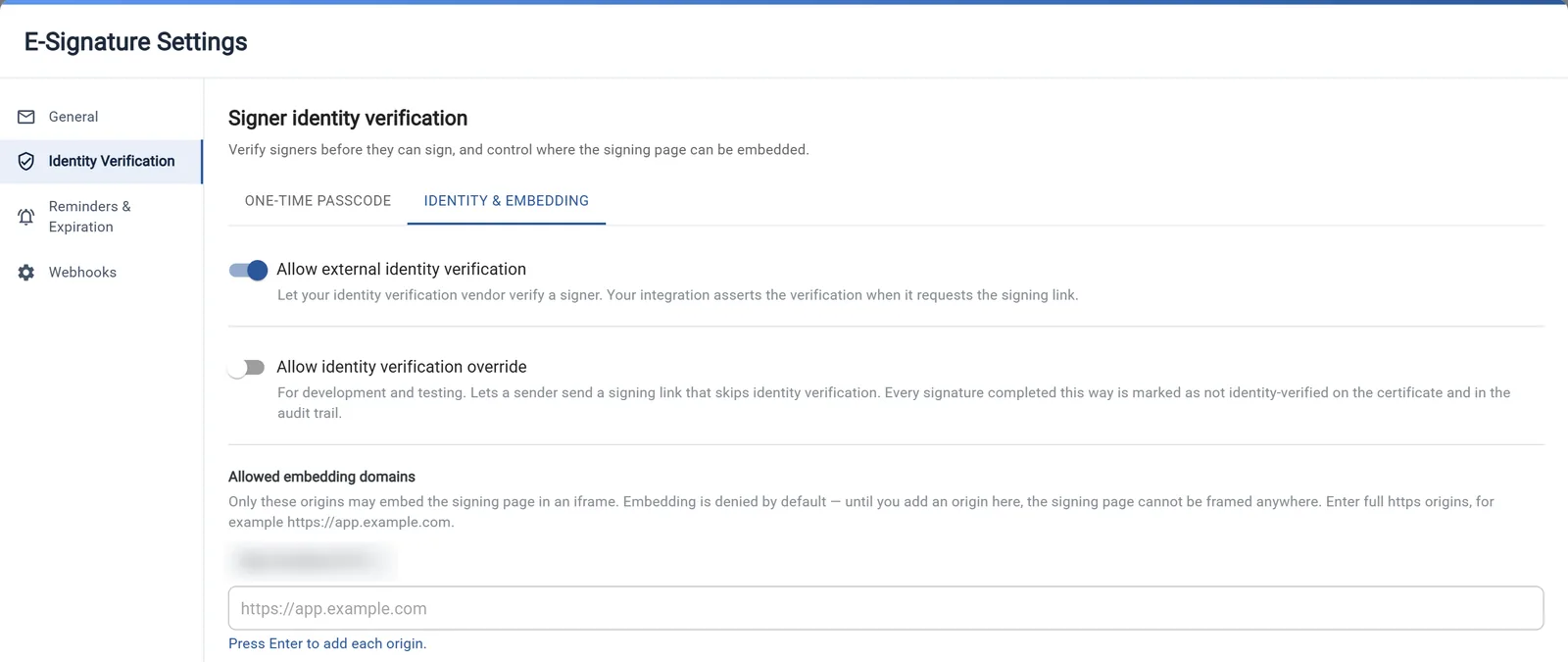
In the E-Signature settings, an organization admin enables embedded signing and adds the origin of your kiosk or tablet app to Allowed embedding domains. The list is deny by default, so until your origin is on it, no site can frame the signing page.
- 2
Your backend creates the document once, with every signer in order
One call to createEmbeddedSignature in the TypeScript SDK (@turbodocx/sdk) creates the request with each signer and their signing order. The first signer comes back ready with a signing URL; later signers come back pending with no URL yet. No signing-link emails go out.
- 3
The kiosk shows the current signer their signing page
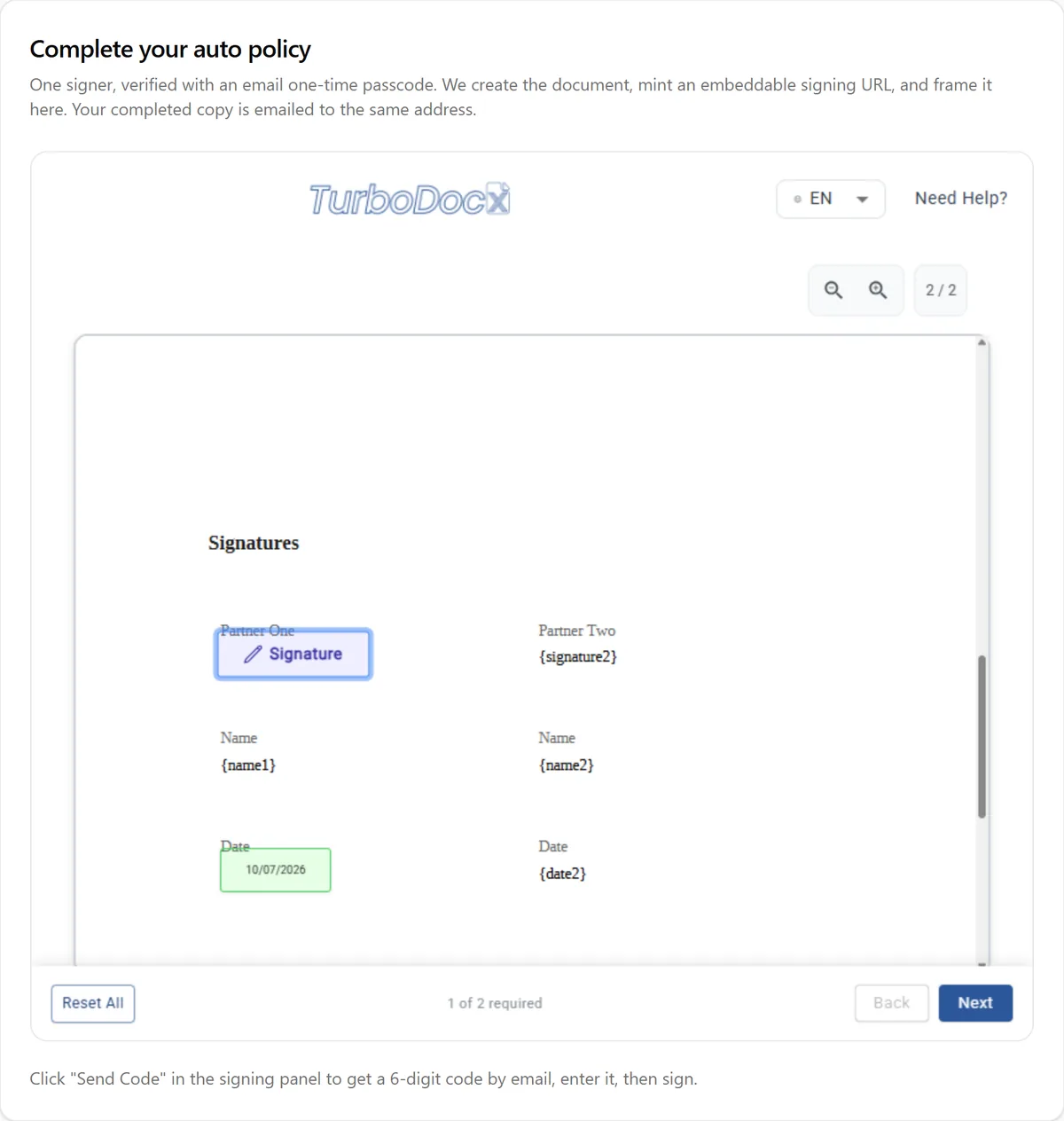
Your app frames the signing URL in an iframe, or drops it into the TurboSignForm component from @turbodocx/embed. If that signer verifies with a passcode, they enter it on the signing page, then review and sign the document without leaving the device.
- 4
When a signer finishes, the kiosk loads the next one
The signing page posts a completion message to your app. Your backend then calls createSigningUrl for the next signer and the kiosk loads it in the same frame. Repeat until every signer is done, then confirm the whole document with the completed webhook.
How are signers verified on a shared device?
The verification method is set per signer, so one document can mix them. Your organization’s verification policy still applies to signers you leave unset.
| Method | What the signer does | What it needs |
|---|---|---|
| Email passcode | Enters a 6-digit code sent to their own inbox | Available on every plan |
| SMS passcode | Enters a code texted to their phone | Pro or Enterprise plan, plus an SMS provider your organization connects |
| External identity assertion | Goes straight to the document, with no passcode step | Your system already verified the person; an admin allows external identity verification |
Compare the methods in detail on the e-signature identity verification page. If your system already checked the signer, see bring your own identity verification. TurboSign also has an override mode that skips verification, but it exists for development and testing, not for a production kiosk.
What does the kiosk backend look like in code?
Two calls in the TypeScript SDK (@turbodocx/sdk 0.8.0). Other languages use the same signing-URL endpoint, POST /turbosign/documents/:documentId/signing-url.
import { TurboSign } from '@turbodocx/sdk';// 1. At the counter: create the document once, every signer in order.const { documentId, recipients } = await TurboSign.createEmbeddedSignature({file: agreementPdf,documentName: 'Purchase Agreement',recipients: [{ name: 'Alex Rivera', email: 'alex@example.com',auth: { emailOtp: true }, fields: { signature: '{signature1}' } },{ name: 'Sam Chen', email: 'sam@example.com',auth: { emailOtp: true }, fields: { signature: '{signature2}' } },],});// recipients[0].status is 'ready': frame recipients[0].embedUrl now.// recipients[1].status is 'pending': no URL until it is Sam's turn.// 2. After the kiosk receives Alex's completion message:const { url } = await TurboSign.createSigningUrl(documentId, {recipientId: recipients[1].recipientId,});// Load url in the same frame. Asked too early, TurboSign answers 409 RecipientNotInTurn.
The backend moves the turn forward a moment after a signer completes, so a short retry on the next createSigningUrl call keeps the hand-off smooth. On the front end, the React e-signature component frames each URL and reports completion; your app swaps in the next URL.
What stays under IT’s control?
Deny-by-default framing
The signing page only loads inside origins an admin lists under Allowed embedding domains. An empty list means no site can frame it.
The API key stays on your server
The kiosk browser only receives signing URLs. Your backend holds the TurboDocx API key and makes both SDK calls.
Pinned completion messages
The @turbodocx/embed component ignores completion messages from any origin other than the TurboSign origin you pin.
A record of how each signer was verified
The certificate of completion shows the identity verification used for each signer, and changes to the embedding settings land in the settings audit trail.
Where is the full implementation guide?
This page covers the outcome. The step-by-step setup, every error code, and the request and response shapes live in the TurboSign documentation, and the sample app runs the kiosk flow end to end.
Frequently asked questions
Can several people sign the same document on one device?
Yes. You create the document once with every signer in order, and your app shows the first signer their signing page. When that signer finishes, the next signer’s page loads on the same screen. TurboSign enforces the order on its own servers, so even a buggy kiosk app cannot let someone sign out of turn.
How do in-person signers verify their identity on a shared tablet?
You choose per signer. An email passcode goes to the signer’s own inbox and works on every plan. An SMS passcode texts their phone; it needs a Pro or Enterprise plan and an SMS provider your organization connects. If your own system already verified the person, your backend can pass that result as an external identity assertion instead. The method used is recorded on the certificate of completion.
Do in-person signers get emailed a signing link?
No. Signing happens on the kiosk, so nobody gets the initial request, the email that says it is their turn, or reminders. TurboSign still sends passcode emails to signers who verify by email, and every signer still receives the completed copy, so each person leaves with a record of what they signed.
How does the kiosk app know when everyone has signed?
The signing page tells your app each time a signer finishes, and the kiosk uses that to load the next person. To know the whole document is done, your server checks its status or listens for the completed webhook, then downloads the signed PDF with its certificate of completion. The implementation guide has the details.
Which websites can show the TurboSign signing page?
Only the ones your admin approves. Allowed embedding domains are deny by default, so the admin adds your kiosk app’s origin, such as https://kiosk.yourcompany.com, in the E-Signature settings before the first test. The @turbodocx/embed component also ignores completion messages from any origin other than the one you pin, so a stray message cannot move the queue forward.
Related resources
Embedded e-signature
Put the TurboSign signing page inside your own application.
Embed e-signatures in React
The TurboSignForm component and web component from @turbodocx/embed.
Embed signing with createSigningUrl
Developer walkthrough of minting and framing a signing URL.
E-signature identity verification
Email passcode, SMS passcode, and your own identity provider, compared.
Bring your own identity verification
Carry an ID check your system already ran into the signature.
TurboSign
The TurboDocx e-signature product behind every signing page.
Put signing at your counter
Bring the agreement and the place people sign it. We will map the kiosk flow to your system of record, choose the right verification for each signer, and build it with you.