Reusable signature templates for the documents you send every week
A reusable signature template is a PDF saved with its signers and fields already in place. In TurboSign you upload it once, define roles like Client and Countersigner, and place each role's fields. After that, anyone on your team, or any system you run, sends it by saying who signs this time.
Free plan includes 5 documents a month. No credit card.
Why does sending the same NDA keep taking so long?
Because every send starts from scratch. Someone uploads the PDF again, adds the signers again, drags the fields back onto the page and rewrites the email. Do that across a team and the same agreement goes out a dozen slightly different ways, with the odd field assigned to the wrong person or a countersigner left off.
A template moves that work to one moment. The person who knows the document sets it up and checks it once. Everyone after them, and every system you connect, sends the checked version.
How do you make a reusable signature template?
Three steps in the TurboDocx app, done once per document.
- 1
Upload the PDF once
In Templates, click New Template, then Upload Template and choose your PDF. TurboDocx stores it as a signature template.
- 2
Choose Set it up to reuse and name the roles
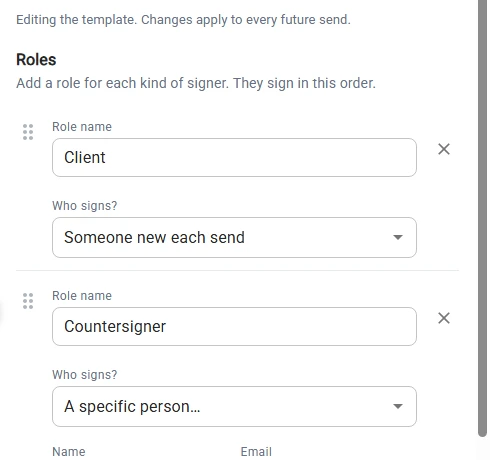
TurboDocx asks what the PDF is for. Pick Set it up to reuse, then give each kind of signer a role name, such as Client and Countersigner. Roles sign in the order you list them.
- 3
Place each role’s fields and save
Select a role, drag Signature, Date and any other fields onto the page where that role signs, then click Save Template. Every future send starts from this setup.
Already sent it once? After a one-time send, TurboDocx offers Save As Reusable Template, which keeps the fields and turns each signer into a role. The PDF signature templates guide walks through every screen.
What is a signer role?
A role is a seat on the document, not a person. You place fields for the role, and each send decides who sits in it. A role can work one of two ways.
Filled in at send time
The default, called Someone new each send. Right for the Client on an NDA: whoever sends it types the name and email for this copy.
Always the same person
Choose Me or A specific person, such as the manager who countersigns every agreement. When one send needs someone else, Change for this send swaps them without touching the template.
Need a witness this one time? Add someone for this send adds a signer or a copy recipient to a single send. They are never saved to the template.
What does a saved signature setup remember?
More than the fields. Everything you would otherwise set up again on each send comes back filled in.
- Signers and roles
- Who signs, in what order, and how each signer proves who they are.
- Fields
- Every signature, date, initials and text field, at its exact spot on the page.
- CC recipients
- The people who get a copy of the signed document.
- Email message
- The note signers read in their signature request.
- Reminders and expiration
- Only what you changed for this template. Everything else keeps following your organization’s settings.
- Document name
- The name signers see, saved on PDF templates.
Works on Word and PowerPoint templates too
Templates that generate documents can carry a signature setup as well. Fill in the variables, and Generate And Sign creates the document and sends it with the saved signers, fields, CC, message and reminders already in place. See saving a signature setup on a template.
Send it from TurboDocx, or from the systems you already run
From the app
Open the template and TurboDocx asks Who's signing this time? Fill in the roles that change, check the ones that don't, and click Get It Signed. Changes you make here apply to that send only.
From your code
Your CRM, portal or onboarding flow sends a PDF template by naming each recipient's role. The fields placed for that role come with it, so your code never deals with page coordinates, and a role you leave out goes to the person saved on the template.
Each role's key comes from its name: Client becomes client. A role left as Signer 1 uses signer_1, which follows its position, so name the roles your code depends on. In Dev Mode, the template's Use via API panel shows its ID and role keys, ready to paste. Roles also work when the signer finishes inside your app.
import { TurboSign } from '@turbodocx/sdk';TurboSign.configure({apiKey: process.env.TURBODOCX_API_KEY,orgId: process.env.TURBODOCX_ORG_ID,senderEmail: 'contracts@yourcompany.com',});// Each role brings the fields you placed for it.await TurboSign.sendSignature({templateId: 'your-template-id',recipients: [{role: 'client',name: 'Jane Doe',email: 'jane@client.com',},// No countersigner given: the saved one signs.],});
The same call is available in every TurboDocx SDK. Sending by role is for PDF templates with roles; a saved setup on a Word or PowerPoint template is used when you send from the app. Sending a template from code
Faster to send, and still a record you can stand behind
Verified signers
A saved signer keeps their verification choice, an email passcode or a text message passcode (SMS is on Pro and Enterprise plans). Read more about signer identity verification.
Tamper-proof results
Every document sent from a template is signed like any other TurboSign document: a tamper-proof PDF, with an audit trail on every signature.
Controlled changes
Only Administrators and Contributors can change a template's roles and fields. Changes apply to future sends, and documents already sent are never affected.
Frequently asked questions
What is a reusable signature template?
It is a document you send for signature again and again, saved with its signers and fields already in place. In TurboSign you upload a PDF once, define the roles that sign it, such as Client and Countersigner, and place each role’s fields. Each time you send it after that, you only say who is signing this time.
Can a role always go to the same person?
Yes. Each role is either filled in at send time or fixed to one person. Choose Me to always sign it yourself, or A specific person to save a name and email, such as the manager who countersigns every agreement. When you send, Change for this send swaps that person for one send without touching the template.
Can I send a signature template from the API?
Yes, for PDF templates with roles. Pass the template ID and give each recipient a role key, such as client. The fields placed for that role come with it, so your code never handles field positions. A role you leave out goes to the person saved on the template. Turn on Dev Mode and open the template to see its ID and role keys in the Use via API panel.
Do saved signature setups work on Word and PowerPoint templates?
Yes. On a Word or PowerPoint template you can save the signers, fields, CC recipients, email message and reminder settings, and they load every time someone generates and sends that template from TurboDocx. Sending by role from the API is for PDF templates with roles.
What happens to documents already sent when I change a template?
Nothing. Changes to a template’s roles, fields or settings apply to future sends only. Documents you already sent keep the setup they were sent with, and any change you make while sending applies to that one send.
Who can change a signature template?
Only Administrators and Contributors can edit a template’s roles and fields or save and delete a signature setup. Anyone in your organization who can send documents can send the template.
Related
Bulk signature sending guide
Send one document to many signers at once, and where templates fit in a signing workflow.
Sign a PDF online
Need a one-off signature? Upload a PDF and send it without setting anything up.
Sign contracts online
Agreements, NDAs and service contracts signed with an audit trail.
E-signature API
Everything TurboSign does, from code, with SDKs for JavaScript, Python, Go, PHP, Java and Ruby.
Embedded e-signature
Let signers finish inside your own app. Roles work for embedded sends too.
Signer identity verification
Email or SMS passcodes, or the login your app already trusts.
Step-by-step docs: How to use a PDF as a signature template
Set up your most-sent document today
Pick the agreement your team sends most, set it up once, and send the next one in seconds.